




Showing posts with label Internet. Show all posts

Saturday, February 4, 2012

FireFox New Free Download


The Firefox browser is created by Mozilla, a non-profit organization whose mission is to promote openness, innovation and opportunity on the Web..The Web is all about innovation, and Firefox sets the pace with dozens of new features to deliver a faster, more secure and customizable Web browsing experience for all.


User Experience -
The enhancements to Firefox provide the best possible browsing experience on the Web. The new Firefox smart location bar, affectionately known as the "Awesome Bar," learns as people use it, adapting to user preferences and offering better fitting matches over time.

Performance -
Firefox is built on top of the powerful new Gecko platform, resulting in a safer, easier to use and more personal product.

Security -
Firefox raises the bar for security. The new malware and phishing protection helps protect from viruses, worms, trojans and spyware to keep people safe on the Web.

Customization -
Everyone uses the Web differently, and Firefox lets users customize their browser with more than 5,000 add-ons.


Firefox-free-download


Tags:
Firefox new update free download, download firefox,free fast web browser, firefox stable version
Read More »

Monday, January 23, 2012

How to Fix MediaFire Download Problem - Continuous Page Refresh

Fix MediaFire Page Refresh

How to Fix MediaFire Page Refresh Problem

Mediafire is one of the best and free hosting service.It gives Free Unlimited Hosting Space and when you download something it gives Unlimited Download speed.That's why MediaFire is most Loved one than other hosting services.anyway, some users face trouble with Downloading with MediaFire links sometimes.

The problem is, page automatically and Continuously refreshed when we click on the download button.
And the good news is, i found some solutions for that problem.


There are few reasons cause this problem
  • Blocked by browser cookies
  • Blocked by Antivirus
  • Blocked by DNS server
lets see how to get rid of these problems....

  • Blocked by browser cookies

    If download problem cause by browser cookie,you have to delete the cookie file.

    If you are using FireFox Follow these steps....
    • Tools --» Options --» Privacy "Tab" --» Click on "Remove individual cookies"
    • Delete "Mediafire.com"
    • DoNE... Now restart the firefox and try Download again
    Fix MediaFire Page Refresh


    If you are using Google chrome
    • Press Alt + Ctrl + Del
    • Choose " the beginning of the time "
    • Select only " Delete cookies and other site data "
    • Click on " Clear browser data "
    • DoNE.... Now restart the Chrome and try Download again

    Fix MediaFire Page Refresh


    Or you can use CCleaner for Better browser data clean up. Click here to Download CCleaner latest version


    • Blocked by Antivirus

      Some times downloads blocked by web control in Antivirus.In this case you have to disable the AntiVir, then try download again....☺

      I think theses methods will help you... Happy Downloading....!!
      If non of these above didn't work for you .. You should Upgrade your Browser and it will solve your problem %100


      Tags:
      Read More »

      Wednesday, January 11, 2012

      Real Hide IP (Full v.) - Free Download

      How to hide your IP/ Be anonymous

      Real Hide IP Download

      Surf Anonymously with Real Hide IP
      Protect your identity and privacy while you surfing Internet with Real Hide IP, you can hide your real IP address, surf anonymously, send emails anonymously through any web based mail system, un-ban yourself from forums sites or blocked websites, It keeps your personal information safe from identity thieves and hackers .

      Real Hide IP allows you to change fake IP addresses which can be from different countries such as United States, United Kingdom, France, etc. This utility works perfectly with Internet Firefox, Google Chrome, Explorer, Opera, Maxthon and its compatible with all types of home networks, firewalls, routers, wireless networks and any other kind of Internet.


      How It Works?

      •  Click "Start Hide" to hide your IP.
      •  You can change location by clicking "Change location"

      Real Hide IP Download

      Note : Some Antivir softwarez doesn't allow to install this, to install you have to turn it off
      Real Hide IP Download

      Tags:
      How to, Hide ip address, free, Real Hide IP free download, free proxy, free vpn, premium vpn, proxy server, proxy servers, how to change ip, anonymous proxy, hide an ip, proxy service, web proxy, ip changer, hide an ip address, download hide ip address, Photo Stamp remover, photo to pencil sketch

      Read More »

      Saturday, December 31, 2011

      How to Increase uTorrent, BitTorrent Download Speed

      Speed Up uTorrent, BitTorrent

      How to Increase uTorrent, BitTorrent Download Speed


      Hello my friends!! Here is another speeding up thing...!! I'm sure one day i will face an Accident because of this speed :)
      Smiley


            Today I'm going to show you how to Increase torrent Download Speed.and you will be shocked after doing this.I suggest you to follow these steps before you know how to Increase torrent Download Speed.


      1.  Speed Up Internet with Open DNS [Win 7]
      2.  Speed Up Internet with Open DNS [Win XP]

        If you are using dial up connection
      3. Speed up Dial-Up Connection

        Finally
      4. Download Tcpip Patch and patch tcpip.sys to Increase Half open connections


       Now you are ready for increase torrent Download speed

      You can apply these Setting to uTorrent and BitTorrent.Most poeple use uTorrent thats why i choose uTorrent For this Tutorial to show how to change settings.But you can apply same settings to BitTorrent. Ok let's Start!!


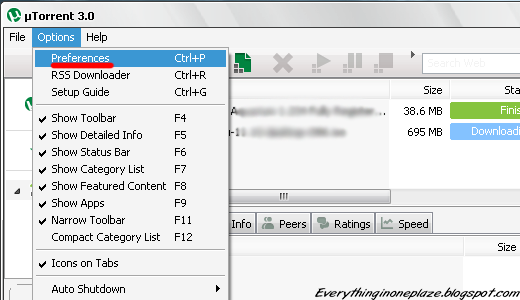
      • Click on "Option"
      • Go to "Preferences"

      Speed Up uTorrent, BitTorrent


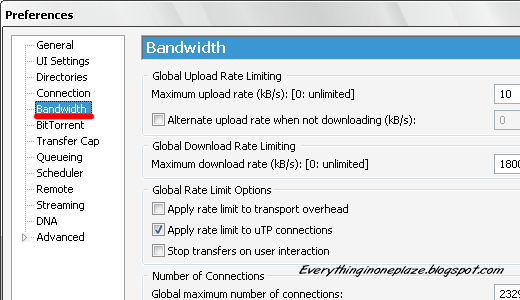
      • Click on "Bandwidth"

      Speed Up uTorrent, BitTorrent

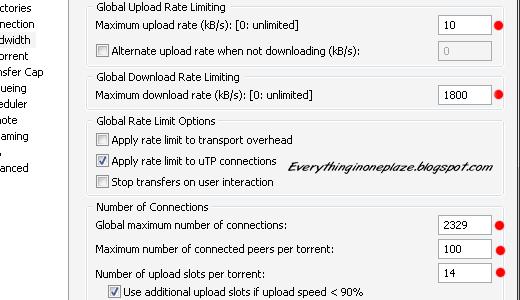
      •  Set
        Maximum Upload Rate : ------------------------------- [ 10 ]  or  [ 15 ]
        Maximum Download Rate : ---------------------------- [ 1800  ]
        Global maximum number of connections : ------------- [ 2329 ]
        Maximum number of connected pees per torrent : ---- [ 100 ] or not more than [ 300 ]
        Maximum upload slots per torrent : -------------------- [ 14 ]                        
      • Leave rest Default

      Speed Up uTorrent, BitTorrent

      Now  final step
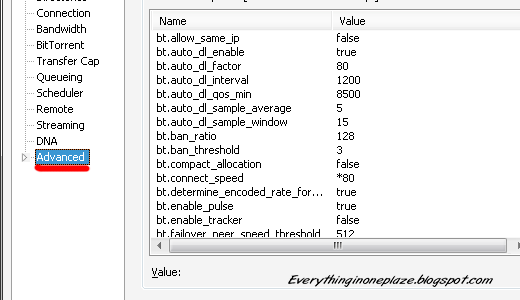
      • Click on "Advanced"
      Speed Up uTorrent, BitTorrent

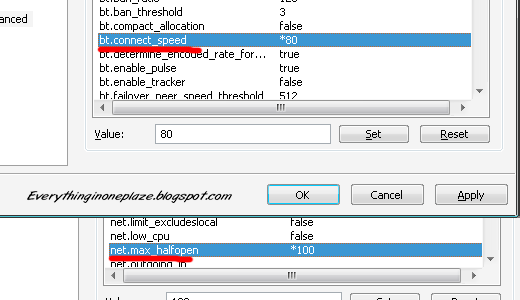
      • Look for "bt.connect_speed" Set it to "80"
      •  Look for "net.max_halfopen" Set it to "100"
        Now All DoNE!! Click on "Apply"
        Exit the uTorrent Application and re Run it.......Feel the new speed
        (Check out the screen shot below)


      Speed Up uTorrent, BitTorrent


      Before i use this trick my download speed was 200-250kbps.But Now ( not only this trick, I used step 3. and 4 mentioned above) !!! You can see that below :)
           
      Click To Zoom
      How To Speed Up Internet

      Tags:
      Read More »

      Friday, December 30, 2011

      How to Increase p2p Download Speed - Tcpip Patch

      Tcpip patch download
             

      How to Increase p2p Download Speed - Tcpip Patch


      In Windows it allows maximum of 10 half open connections at one time.Its limited by windows for a security reason.Suddenly if your Computer get infected with Virus ,worm or any kind of malware,if half open connections are limited, it slow down spreading them to another computer through the internet.and also reduce the impact of infected systems participating in DOS (Denial of Service) attacks.
                                                                                                                                       And the bad thing is this limit can also slow down P2P applications like "uTorrent, BitTorrent, Vuzu, BitComet, eMule". Because they need to connect to several peers for better Download Speed.When the half open connections limited by windows it can connect to few  peers.That's why we need patch "tcpip.sys" file to expand the limitation and get better Torrent download speed.OK friends lets remove the limitation for forever!!!!


      For:
      Windows XP Sp2/Vista/Windows 7, 32bit(x86)/64bit

      Universal Tcpip.sys Patch, V1.2 

      Universal Tcpip Patch Download

      Universal Tcpip Patch Download

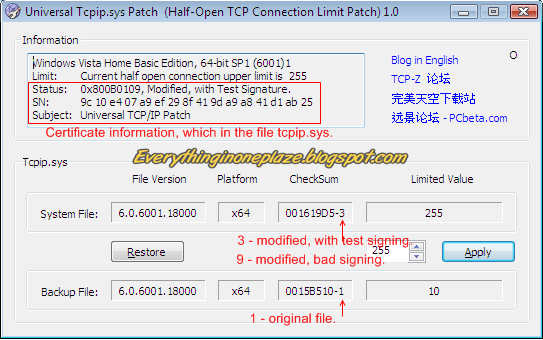
      Meaning of the numbers
      1 - Original file, without any modification.
      3 - The file has been modified, but with a test certificate.
      9 - The file has been modified, but not repair signing. (Windows XP does not compare the signing)


      Read the Instructions before applying the patch

      Important:
      * In Vista / Windows 7, testsigning must set to on," Test mode " watermark may appear in Desktop.
      * If " Test Mode " watermark exists on the desktop, apply the patch once again.
      * If  it still exists don't try to disable it. let it be there, it won't bite you... Smiley

      Create a System restore point before applying the patch
      1. Make sure that you have Administrator Rights modify system files
      2. Run  "UniversalTcpipPatch.exe" as Administrator
      3. Change Value to "100" (Maximum "256", But "100" is more than enough)
      4. Click On "Apply"
      5. Restart the Computer !! And Your Are DoNE..........
        Enjoy the new torrent Download speed


      Tcpip Patch For Windows XP SP3
      Windows XP SP3 Tcpip Patch Download


      Universal Tcpip Patch Download


      1. Open "tcpip-patcher.exe"
      2. Change Value to "100" (Maximum "256", But "100" is more than enough)
      3. Click On "Apply"
      4. Restart the Computer !! And Your Are DoNE..........
        Enjoy the new torrent Download speed

      Tags:
      how to, How to Increase uTorrent download Speed, How to Increase BitTorrent download Speed, download Tcpip patch download, download Tcpip patch for windows 7, download Tcpip patchwindows xp, Boost uTorrent, Boost BitTorrent, Speed up utorrent, speed up bittorrent, uTorrent, BitTorrent, Vuzu, BitComet, eMule , Boost download speed, fast internet, boost internet, increase download speed, boost p2p, p2p download speed, utorrent settings speed, increase internet download speed, increase speed downloads on utorrent bittorrent, bittorrent utorrent speed boost, increase stuck torrent speed, 
      Read More »

      Tuesday, December 20, 2011

      How To Boost 3G Signal - USB Dongle

      Boost-3G-Signal

      How to boost 3g Signal of your USB Dongle


      Hello my cute little friends!! Today I gonna give you a different solution for your internet problem.
      I just thought how many people worried about their signal strength of Dongle and always mention mothers of ISPs (Internet Service Provider) heh hee!.
      I can read your mind....!!!!                     don't panic I’m just kidding..
      I figured out a solution for it. here is another silly trick came out from my little brain.... You can boost your 3G signal from this thing. Try it and speed up your Dial-Up Connection
      You don't wanna get your hands dirty with any soldering stuff, Hard work or you don't need any expensive stuff. Let’s see how it works !!


      What we need?

      6 Pieces of Single Core wires ( 1.2mm - recommended )
      USB Extension cable ( 3 meter - recommended ) Too long cause, lower the power for dongle
      HSDPA Dongle :)


      •  6 Pieces of Single Core wires and USB Extension Cable
        Boost-3G-SignalBoost-3G-Signal


        •  Get the USB extension cable 
        •  Tie up the wires like this (Don't use too many wires)
        •  Bend the tip of the wires (ii)
        Boost-3G-Signal


        •  Now we are DoNE!! Hang or Stick the Dongle in upper place


        Tips to gain more signal ......!!

        •  Don't place the Dongle in Corners
        •  Don't place the Dongle in a Fully Covered Position
        •  Place It in a better air space
        •  Stick in the wall
        •  Move up your PC near to the window and hang the Dongle in the window :)


        Here is another Idea If you can Built !!!
        Boost-3G-Signal


        I Hope This post will help you some how...please leave a comment about your ideas


        Tags:
        how to improve 3g signal, How to Increase 3g signal,boost 3g signal dongle speed up ,improve 3g signal ,enhance 3g signal enhance dial up speed , Boost download speed, fast internet, boost internet, increase download speed, boost p2p, p2p download speed, Real Hide IP Full v.  Free Download, Driver Genius Pro Free Download, Google Maps Downloader  Free Download,
        Read More »

        Sunday, November 27, 2011

        How to Avoid being Tracked by cookies

        Super Cookies
        Super Cookies

        What is a Cookie ?

        Cookies play the most important role when you browsing web pages. They are elements of the http protocol that your computer manipulating to request web pages and that web servers use to deliver them. and it also called as HTTP cookie, Web cookie

        Read More »

        Friday, November 18, 2011

        How To Speed Up Your Dial-UP Connection - Part 1

        How To Speed Up Internet

        Are you still stuck with a slow dial-up connection? Here is the solution. Try it and wake up your dial-up connection. We can speed up Dial-up connection by changing DNS sever. Then we have to use faster DNS server. in this method shows you to how to use Open DNS for Dial-Up connection
        Click here to find about "What is DNS"


        Read More »

        How To Speed Up Your Dial-UP Connection - Part 2

        How To Speed Up Internet

        Click here if you don't read How To Speed Up Your Dial-UP Connection - Part 1


        If You Are From Other Country

        ---------------------------------------------------------------------------------------------------------------------
        • APN: (Don't change)
        • Access Number/Dial Number :(Don't change)
        *Do not change APN or Dial number leave it default
        ------------------------------------------------------------------------------
        Read More »

        Wednesday, November 16, 2011

        What Is SEO?

        SEO, What-is-seo

        What Is SEO?


        First I’m Gonna Show you what is SEO, before how to SEO.
        Search Engine Optimization (SEO) is the main process of getting traffic. It’s the way of getting a website to work better with search engines like Google, Yahoo, Ask, Bing and many others, but we mostly use Google and yahoo. Search engines show sites in search results with authoritative and relevant content which is suitable to keyword that we entered. We have to figure out what people search for and what are the most power full KEYWORDS. Then we can make our content more authoritative and relevant to what they searching for. Let’s think someone searched with KEYWORD that relevant to content in our site, if our site came top in result… It’s SE Optimized!! .. I think that’s enough for understand what is SEO.


        How To Make My Site Appear in Top Of Search Results?

        How do you get your webpage to top of search results ??
        This is a important thing to a website.. It’s a simple. Here it is
        Quality Content + Quality Links = Search Engine Optimized!


        SEO, What-is-seo

        How Does Google Decide Where to Rank Pages?

        Google rank pages it thinks are authoritative pages to the top of it's rankings. It’s the SEO your page make authoritative .So in simple terms SEO involves writing pages that use keywords, words people use in searches, and securing links from other pages to show how important your page is compared to others. Links are votes and votes get you elected to page 1.....


        ____________________________________________________________________
        Related Posts


        Read More »

        Wednesday, October 19, 2011

        How To Speed Up Internet with Open DNS [Windows7]

        Open DNS Windows 7
        Open DNS Windows 7


        Open DNS Windows 7
        Windows XP Users Click Here


        What Is DNS ?


        The DNS (Domain Name System) is the phonebook of the Internet. When you enter a website into a browser, it's DNS that finds the optimal machine to serve that website to you. Without it, browsing as we know it would not be possible.
        eg:

        When you type an internet address in your web browser " www.google.com", the request first goes to the DNS servers of your local ISP. These “Domain Name Servers” will translate the web URL into some cryptic and hard-to-remember numeric address " 74.125.39.104"
        _________________________________________________________________

        Open DNS serve 30 billion DNS requests to 20 million customers every day, with plenty of capacity to spare. You're probably using DNS service from your Internet Service Provider (ISP) today, but ISPs have notoriously unreliable and slow service. OpenDNS is the best  DNS service available and its the best solution for slow internet Connections.

        lets see how to setup OpenDNS for your Computer

        • First Go to Control Panel, then select “Network and Internet”.

        Open DNS Windows 7


        • Select “Network and Sharing Center”.
        Open DNS Windows 7


        • Select “Change adapter settings”.
        Open DNS Windows 7


        • Then Right click on your current internet connection and choose “Properties”.
        Open DNS Windows 7


        • Select the “TCP/IPv4” service in the list, then click the “Properties” button.
        Open DNS Windows 7

        • In the DNS section fill with this numbers
          Preferred DNS Server : 208.067.222.222
          Alternate DNS Server :  208.067.220.220
        Open DNS Windows 7


                                       ª"˜¨¯¯¨˜"ª¤(¯`*•.¸(¯`*•.. All DoNE. ..•*´¯)¸.•*´¯)¤Âª"˜¨¯¯¨˜"ª

        Click On this link to find out to setup is successful or not
        Click Here To Check The Connection ....

        If connection is successful it'll appear like this


        Open DNS Windows 7


        NoW, Time TO Lightning FaST Web BroWsing.......


        Other Public DNS Servers


        Service provider: Google
        Google public dns server IP address:
        • 8.8.8.8
        • 8.8.4.4
        Service provider:Dnsadvantage
        Dnsadvantage free dns server list:
        • 156.154.70.1
        • 156.154.71.1

        Service provider:Norton
        Norton free dns server list / IP address:
        • 198.153.192.1
        • 198.153.194.1

        Service provider: ScrubIt
        Public dns server address:
        Read More »